InStudio™ is a powerful, artist‑friendly composition tool
that helps painters and instructors
analyze color, explore hue, value, chroma patterns,
and create stronger compositions.
 Testing stage before official release
SCREEN SHOTS
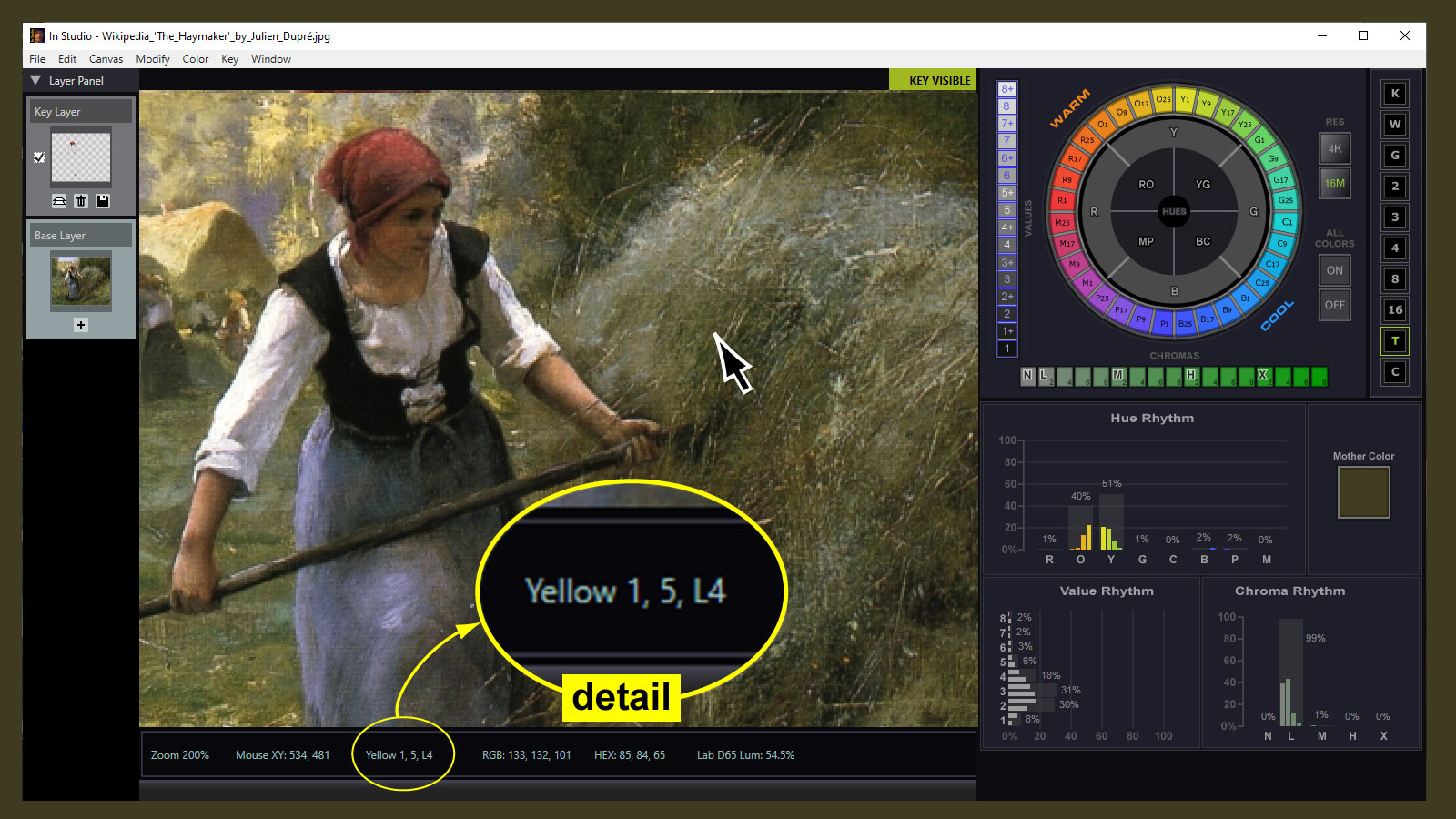
Color is displayed in real time using artist friendly color notation system (e.g. Yellow 1, value 5, chroma Low 4).
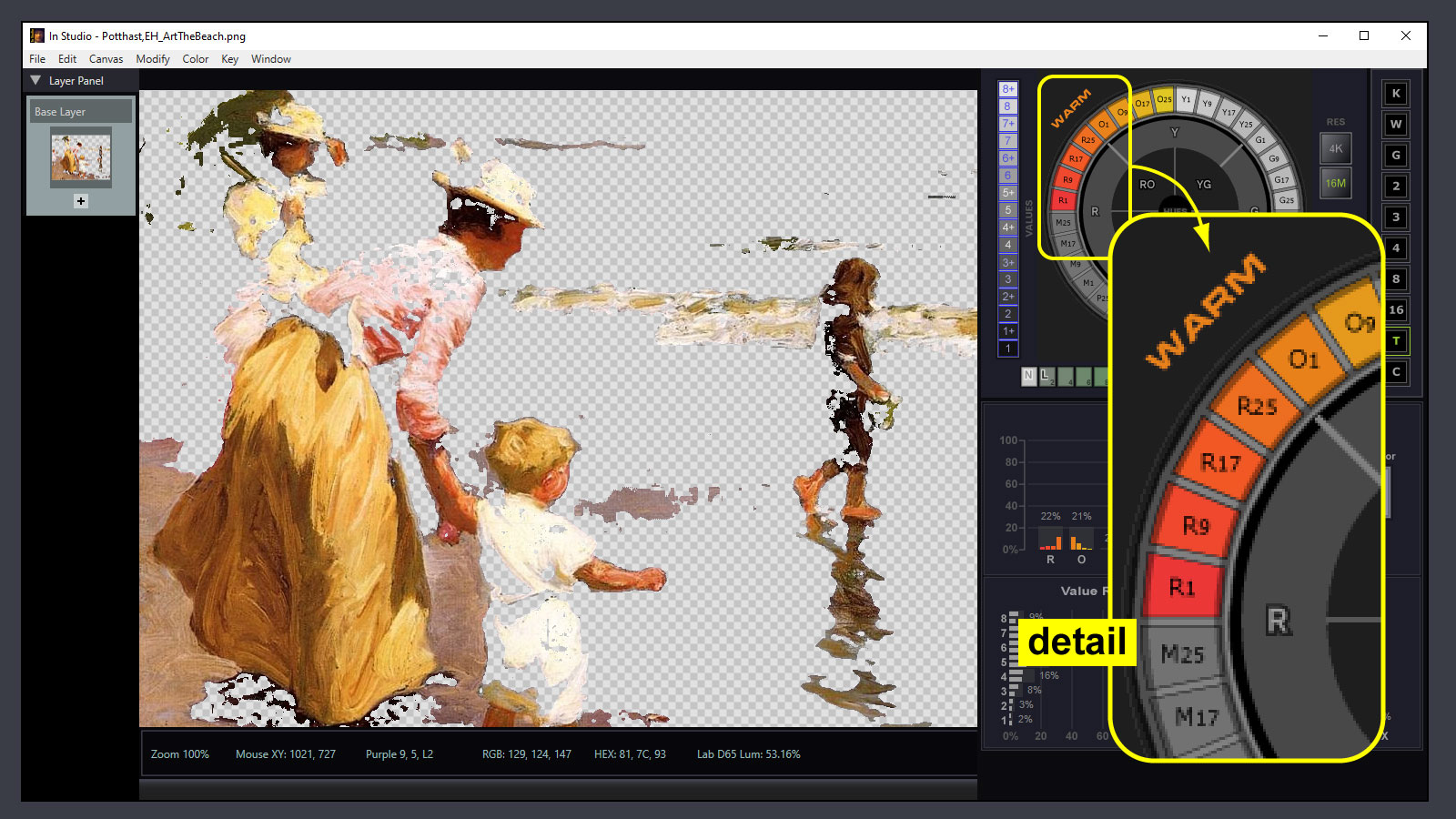
Key (mask) individual hue, value or chroma channels and set one of 10 backgrounds. Here, all hue channels but the four red and the four orange are keyed out with a transparency background.
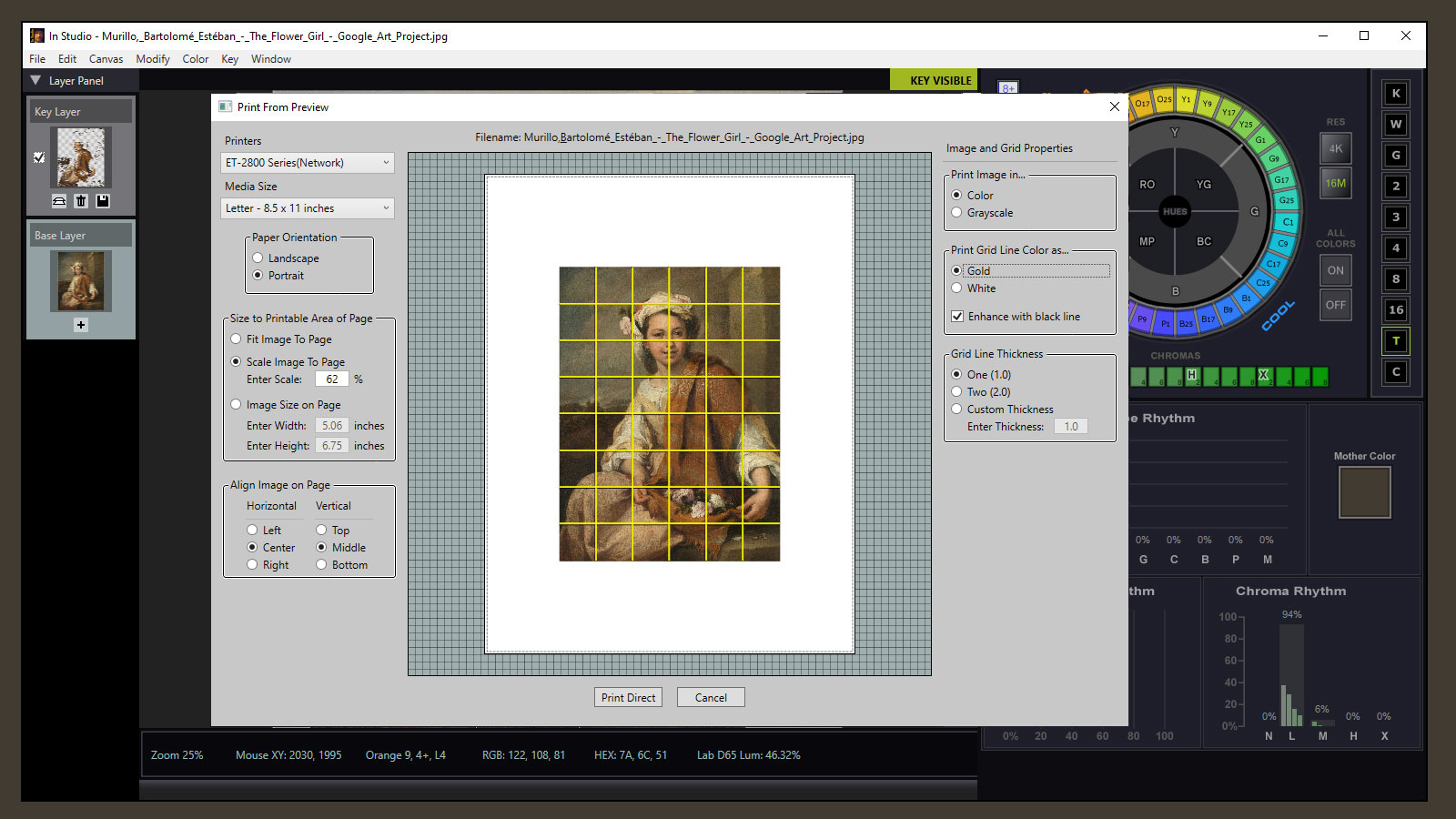
Custom Print Preview window to control image properties for printing. Note that grid lines print. Here the image is centered on a letter size page, exactly 6.75” high, in color, with drawing grid "on", and set at 1.5 units thick.
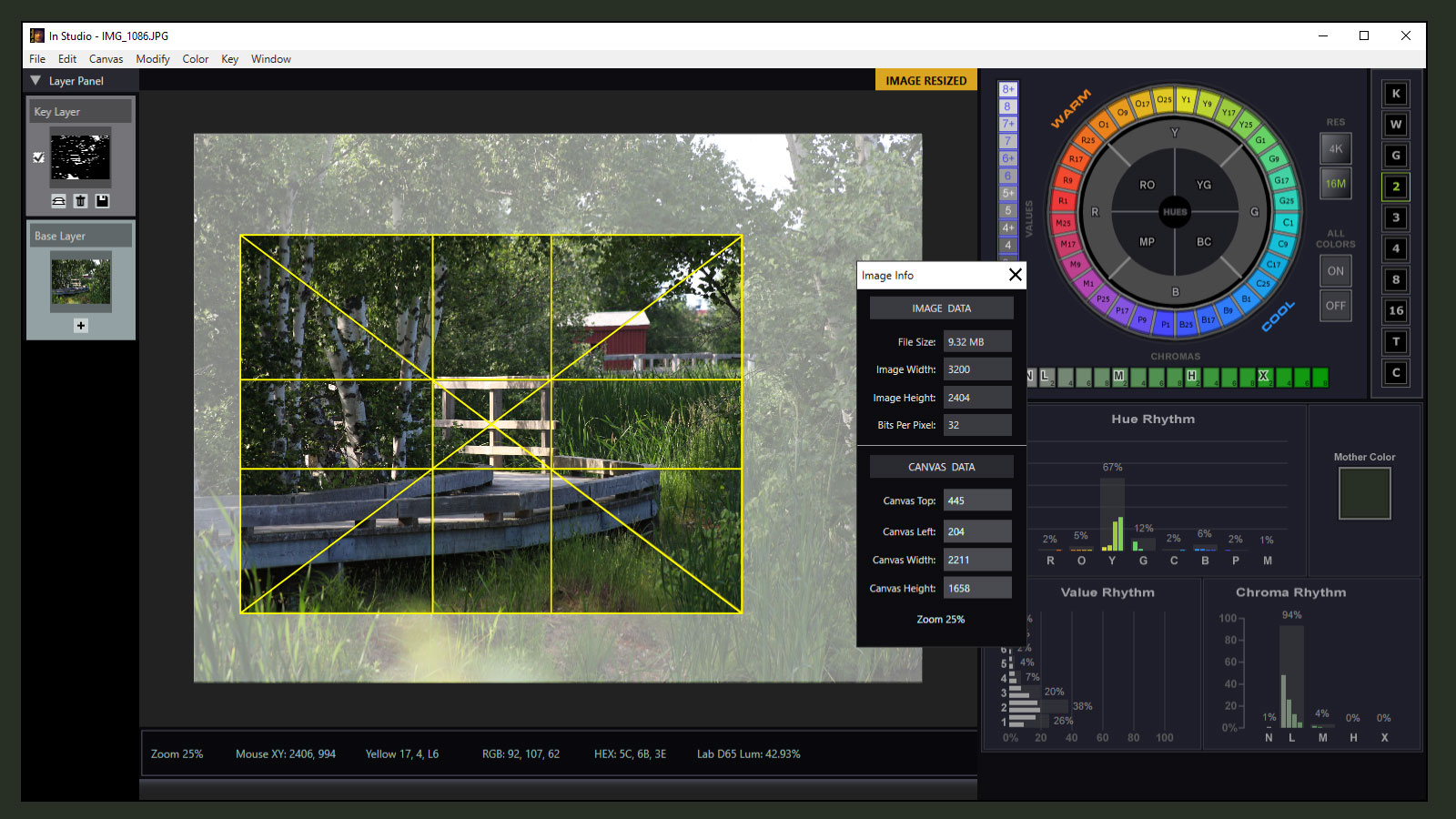
Variety of Composition or Drawing grids that resize with the canvas window frame in real time (e.g. golden ratio composition grid).
TOP FEATURES
- Interactive color keying on 32 hues, 16 value levels, or 17 chroma levels - key channels individually, in any combination, in real-time; isolate and edit more than 4000 unique color ranges (e.g. mask red shirt and change to blue)
- Deep color analysis - hue, value, chroma rhythm (including mother color) is analyzed and charted automatically for every image
- Artist friendly color notation (Yellow 1, value 3+, Low 6 chroma), plus standard RGB, hexadecimal, and CIE D65 Luminance
- Contrast backgrounds for masked out colors (transparent, 16 gray, 8 gray, 4 gray, 3 gray, silhouette, plus solid neutrals)
- Save color mask as overlay with transparent background to file, copy to clipboard, or place on "key layer" for color editing
- Intuitive color editing - edit color individually by hue, value, or chroma channel (e.g. change green shirt to red keeps value and chroma as close as possible to original)
- Dynamic Canvas Window overlay - set canvas overlay size and shape, turn it ON or OFF, move it by mouse, nudge it one pixels at a time, and resize it in real-time while keeping aspect ratio
- "Free-flow" cropping - create a “free flow” canvas window and crop image to exact pixel size
- Canvas Grid control - set a composition Grids (golden ratio, rule of thirds, quarter) or drawing Grids (set block size in inches); Grids turn ON or OFF, and resize with Canvas Window
- Image resizing (keeping ratio), rotating (partial degree increments), or flipping your source image horizontally or vertically
- Custom Print Preview window - position and scale image on page, control various grid properties including the thickness of grid lines that print
- User preferences – set maximum size limits when opening large images, and various default properties for Canvas Window and Grid
- Open jpg, png, bmp, and gif images; save as jpg, png, and bmp
- Zoom - mouse wheel from very small to magnified pixels instantly